Showing posts with label FCCS. Show all posts

Saturday, 2 August 2025

New consolidation setting for Translation Rules to skip the Translation in FCCS

Consolidation Setting for Translation Rules

In Aug 2025 monthly release for FCCS, a new Consolidation Setting called Skip Translation Rules if Entity Currency Equals Parent Currency is now available for multiple-currency applications. When you enable this setting, the translation-based configurable calculation (insertion) rules are skipped during the translation process for those Entities whose Base Currency property matches their Parent’s Base Currency property. The rules include:

  • FCCS_25_Before Foreign Exchange (FX) Calculations
  • FCCS_30_After Opening Balance Carry Forward
  • FCCS_40_Final_Calculations

By default, the Consolidation Setting is not enabled.

To manage consolidation settings:

  1. On the Home page, click Application, then Consolidation Settings.
  2. From the Setting Type dropdown, select the type of setting as Consolidation/Translation.


  1. To enable or disable the setting (Skip Translation Rules if Entity Currency Equals Parent Currency), use the slider icon Slider button next to the setting.
  2. To save the setting selection, click Save. When you receive the saved confirmation message, click Close.
Applied to: FCCS

Business Benefit: 

This consolidation setting enables you to decide whether to skip these calculation rules, which improves overall Consolidation performance, in addition to making the translation process more efficient.

Updated on: Aug 2, 2025 

Sunday, 29 June 2025

Future of Infolets: Plan to Discontinue Support for Infolets

Plan to Discontinue Support for Infolets

About Infolets

Infolets enable users to view and interact with high-level, essential information generated from different sources so that they can quickly assess where to direct their attention. Service Administrators create, redesign, delete, and assign permissions to infolets.

An infolet is a self-contained, interactive box-shaped container used to display information using text and charts. Infolets are interactive and use progressive disclosure to display high-level, aggregated, essential information for quick consumption at a glance, and then can be acted upon as needed. Infolets can be flipped and resized to display up to three charts or sets of values.


Future of Infolets

Starting with the October 2025 (25.10) update, Oracle will no longer support the following infolet actions:

  • Creation of new infolets
  • Copy As, which duplicates an existing infolet
  • Designating an infolet as Default and defining infolet dots on the Home page

This change applicable to Enterprise Profitability and Cost Management, FCCS, FreeForm, Planning, and TRCS.

Thank you!


Monday, 19 May 2025

Ability to Add Instructions to Dashboards in Dashboard 2.0

Prior to release 25.05, there was no provision to enter the instructions for business user for Dashboard 2.0. Below is screenshot from Dashboard 2.0 in designer mode.


With 25.05 release, Dashboard designers can now add instructions to entire dashboards in Dashboard 2.0.

Dashboard instructions can be added in the General tab of the Properties Panel in Dashboard Designer, and they can be customized with formatting and URL links. When saved, dashboard instructions can be viewed in the global toolbar in the runtime dashboard.

As part of this enhancement, global dashboard details such as the dashboard name and the folder path of the dashboard have been moved to the runtime dashboard's Actions menu in the Dashboard 2.0 Global Toolbar. Similarly, dashboard component details such as the underlying form name, the folder path of the form, and the cube, can be viewed in the dashboard component's Actions menu.

To add instructions to a dashboard in Dashboard 2.0:

  1. On the Home page, click Dashboards.
  2. Open an existing Dashboard 2.0 dashboard, or create a new one.
  3. In the Dashboard Designer, view the General tab of the Properties Panel. The Instructions property is at the bottom of the General tab. 
  4. Click the Disable/Enable toggle next to the Instructions property to set the property to Enable.
  5. Enter instructional text (no more than 2000 characters), format it, and then click Save.
  6. To view instructions, switch to the runtime dashboard and click Instructions in the runtime dashboard's Global toolbar.

          Click on Disable link to make it change to enable to allow to add instructions


To view details for an entire dashboard in Dashboard 2.0:

  1. On the Home page, click Dashboards.
  2. Open a Dashboard 2.0 dashboard.
  3. On the Global toolbar, click Actions, and then click Show Details.

To view details for a dashboard component in Dashboard 2.0:

  1. On the Home page, click Dashboards.
  2. Open a Dashboard 2.0 dashboard.
  3. Hover over a dashboard component to reveal the Dashboard Component toolbar.
  4. Click Actions, and then select Show Details.

This applies to: 

  • Enterprise Profitability and Cost Management
  • Financial Consolidation and Close
  • FreeForm
  • Planning 
  • Tax Reporting

Business Benefit: This feature allow user to provide customized instructions for entire dashboards in Dashboard 2.0.


Created by Mohit Jain and Megha Gupta

Monday, 13 May 2024

Can FCCS supports granular level data reporting?

Problem Statement

There is a need of Profitability report by legal entity, by account and department as well as by location. Ask is can FCCS generate profitability by department reports? Can FCCS generate profitability reports at lowest level?

FCCS functionality

Yes. Why not! It completely depends on how flexible you configure your application. You can definitely generate a report at lowest level you loaded the data.

FCCS is designed based on industry best experiences. FCCS provides inbuild 11 standard dimensions and upto 4 custom dimensions (If the application is enabled with the Multi-GAAP reporting option, you can create three Custom dimensions.)  Based on business requirements, 4 custom dimensions can be chosen. Once data will be loaded into FCCS across the custom dimensions, reports can be built.  It completely depends on how application is configured. There are few one-time setups that you have to consider and make the application flexible to generate such reporting.


Note -

1.If you still have 2 custom dimensions in your application, FCCS application needs to be updated to 4 custom dimensions (Extended Dimensionality update).

2. When the Extended Dimensionality update is applied, your existing application (with 2 dimensions) will no longer be available. You must create a new application (with 4 custom dimension). You cannot modify the number of dimensions in an existing application.

Solution 

In FCCS to meet this requirement you should have Legal Entity, Account, Department and Location as your dimensions and while generating the report you should consider creating in such a manner, that you don’t face performance issues.

You can generate a Financial Reporting (FR), Management Reporting (MR) or Smart view (Template based) report. FR is not recommended as will have to migrate to MR at a point of time so it's better to create a report in MR or Smart view. 

Point to consider -

1. Drill Down functionality should be applied when we have need to see data across all levels of dimension. User can start drilling down to top member and reach out to desired level of dimension.

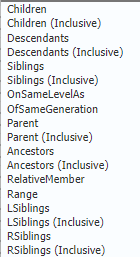
2. Instead of hard coding of members in selection window, use the member functions like Children, Descendants functions.


3. Based on business requirements, Financial Report or Management Reports can be scheduled as well and reports in email to inbox/ placed to specific folder.

4. Keep the unrequired dimensions to POV.


Thank you!

Created by - Megha Gupta & Mohit Jain

Tuesday, 7 May 2024

Performance Improvement - Enabling the faster load time for the Jobs page

As per new updates from April 24, the Jobs page and the Jobs Filter will display only last day's data. Before this update, the Jobs page used to default to display three days of data under Recent Activity. Now the Jobs page defaults to display only the last day's data. Similarly, the filter’s Start Time and End Time dates default to yesterday and today to have only a one day difference.

This feature enables a faster load time for the Jobs page, allowing you to more quickly view the status of recent activity.

This feature is only applicable to Financial Consolidation and Close, FreeForm, Planning, Tax Reporting.

To view the Jobs page:

  1. Click Application, and then click Jobs.
  2. View the jobs list under Recent Activity to see the last day's activity.
  3. To change the default display, click the Filter icon.


Thank you!


Sunday, 5 May 2024

Plan to Remove Users Administration and Groups Administration from Audit Reports

Auditing Overview

Use the Audit feature to view tasks performed by users. You can filter audited tasks by audit type (for example, Data, Approvals, or Clear Cell Details), date range (for example, Yesterday or Last 60 Days), and username.

You must be a Service Administrator to enable audit tracking, and to view and export audit information.

To access the Audit feature-

Go to Navigator -> Tools -> Audit


These are the types of user activities the system can log in the task audit:


Plan to Remove Users Administration and Groups Administration from Audit Reports

Currently, you can get information on Users Administration and Groups Administration from the Audits Reports available in the Identity Console. In an upcoming monthly release, information on Users Administration and Groups Administration will no longer be included in audit reports.

In the Enable Audit dialog box, the Users Administration and Groups Administration options will remain available for some time to allow customers who already have these records to view any existing user and group provisioning records. However, after this change, no new records will be displayed in the Audits Report.

This change applies to: Enterprise Profitability and Cost Management, FCCS, FreeForm, Planning, and TRCS

Thank you!

Friday, 3 May 2024

Randomization of Daily Maintenance Start Time

Starting with April 24 update, the Daily Maintenance Start Time of EPM Cloud environments are updated by assigning a random minute at which the maintenance process starts. 

Before:

Before this update, the daily maintenance started at the top of the hour, for example at 2:00 p.m. UTC (14.00 on a 24 hour clock) only. 

With this update:

This change modifies the start time by adding a value for minute (for example, 2:24 p.m. UTC (14.24 on a 24 hour clock). A Service Administrator can change the daily maintenance start time to a more desirable minute, if needed.


Applies to: Account Reconciliation, Enterprise Data Management, Enterprise Profitability and Cost Management, Financial Consolidation and Close, FreeForm, Narrative Reporting, Planning, Profitability and Cost Management, Tax Reporting

Business Benefit: This change ensures that the daily maintenance load on EPM Cloud infrastructure is distributed throughout the hour.

Thank you!


Saturday, 13 April 2024

How FCCS View dimension helps in improving the performance of data loads!

How FCCS View dimension helps in improving the performance of data loads!

In FCCS Application- Under View dimension, there are three members under a parent member “FCCS_View_System Members”: “FCCS_QTD_RULE”, “FCCS_HYTD_RULE”, and “FCCS_YTD_RULE”. 

Details -

FCCS provides an Application Settings option to disable View calculations. By Turning this setting to "Yes" -

1. This option disables computation and storing of YTD, HYTD, and QTD data for data input (through forms, data import, Data Management, and so on) in the YTD, HYTD, and QTD members. 

2. Turning this setting to "Yes" will help in improving the performance of data loads.

3. Once data is loaded, ese the required YTD_RULE, HYTD_RULE, and QTD_RULE members to see the respective View data after data load. 

4. Data will not be populated and updated in the YTD, HYTD, and QTD members after data load.

To disable View calculations:

  1. Click Application, and then click Settings.
  2. Set the Disable To-Date View Calculations option to Yes.
  3. Load data.
  4. Use the YTD_RULE, HYTD_RULE and QTD_RULE members to see the YTD, HYTD and QTD data.

However, if there is requirement to use the YTD, HYTD, and QTD members, you will have to run the Update View Calculations rule for all the Scenario/Year/Period/Entities for which data was loaded when this option was set to "Yes", and pass QTD, HYTD, and YTD as parameters so that the values are correctly computed and stored.
This will make sure future data loads will correctly populate the "Never Share" YTD, QTD, and HYTD members.

Update View Calculations rule can be run at any time, regardless of the calculation status.

To update View calculations:

  1. On the Home page, click Rules.
  2. From the Business Rules list, select UpdateViewCalculations.
  3. Select or enter dimension members for EntitiesPeriodScenarioYearView, and Currency, and click OK.
  4. Click Launch to run the rule.


Thank you!


Sunday, 28 May 2023

Financial Close Manager

Problem Statement


Manual tracking of the close process, using excel and e-mails is one of the reasons companies still experience issues in their close process from an accuracy, transparency, complexity and comprehensiveness perspective.

By standardizing and embedding controls in period-end close processes, organizations can eliminate labor-intensive, non-value adding activities and streamline decentralized and disjointed workflows that lengthen cycle times, increase the risk of control failure, and threaten the integrity of financial statements.

However, you don’t need to spend countless hours on how to close the books in Real time! 

This article will guide you through how Financial Close Manager is a pathway to Streamline and Accelerate Your Close Operations and best practices you need for a successful journey to EPM Closing and Reporting.

What is Financial Close Cycle


Financial Close Cycle indicates the number of business days required to close the books of accounts and submit finalized financial reports to the management and regulatory authorities at the end of the accounting period. It can be monthly/quarterly/yearly from the time that financial data gathering begins, until management and any regulatory authorities receive finalized financial reports.


Close challenges 


  • Inconsistent closing calendar and checklist 

  • Lack of quality data from upstream processes or ineffective data aggregation activities

  • Lack of automated close processes (e.g., high level of manual journal entries) 

  • Ineffective procedures for validating results 

  • Lack of timely hard close of periods and ability to post transactions after reporting package submission

  • Intercompany accounting – manual adjustments


Organizations are finding it difficult to track:

  • The current status of close

  • Number of open tasks?

  • Where is it stuck?

  • Is there any issue in closing the task? 

  • Who all are assigned to close tasks?

  • Is the predecessor/successor tasks followed?

  • Is any assigned employee on Leave?

  • Do they need some backup for assigned employee?

  • There is no workflow to monitor?

  • Approval mechanism in place?

  • Looking for email notification for current status?

  • Availability of backups?

Close Manager

Oracle Financial Close Manager module of FCCS is built for centralized, web-based management of period-end close activities across the extended financial close cycle.

It helps to manage all financial close cycle tasks, including ledger and sub ledger close, data loading and mapping, financial consolidation, account reconciliation, tax/treasury and internal and external reporting processes.

This includes:

  • Close Manager Components (Setup Calendar, Security, Periods, Years, Custom Attributes, Alert Types, Integrations)

  • Define Tasks for a Close Process - setup Task Types

  • Define Dashboard Views (Calendar, Task List, Gantt Chart)

  • Create / Update Templates (and validate) with repeatable close tasks

  • Setup / Update Schedule by pulling from a template

  • Workflow process


Thank you!

Created by Mohit Jain & Megha Gupta

Enterprise Journals in FCCS : A Centralize place to manage all Journals

Problem Statement

  • Topside Journals taking month end close to infinity.
  • In today's business, lots of reliance on offline spreadsheets, differs depending on target ERP systems.
  • Many organizations have to make offline workflow mechanism to post journals in GL.
  • During Month end close… big question is:
    • How can topside journals posted to EPM system travel back to ERP without manually booking them?
    • How to automate monthly close to speed up to reduce low value tasks, most of these tasks are offline spreadsheet journals
    • Depending on how many ERP systems you have, every Excel template used to process journals may be different.

Many organizations might work on manual or different custom approaches, but these does not meet the requirements as describe below -

Manual approach

  • Increases the operational cost
  • Significantly increases the risk of material misstatements
  • Lack of adequate controls with top-sided JE posting

Custom Integration

  • Most customizations are prohibitively expensive
  • Do not provide future proofing
  • Need of seamless workflow from one process to another

Organizations are looking for a solution who can meet the requirement as depicted below -


This article talks about how Enterprise Journal module provide by EPM Cloud tools to streamline and centralized way to manage manual journal entries across the oracle EPM cloud platform.

What is Enterprise Journal

  • It is an EPM platform tool used for preparation, approval and posting of manual journal entries to the journal ledger postings for both Oracle and Non-Oracle ERP systems.
  • It provides a streamlined, centralized way to manage manual journal entries across the oracle EPM cloud platform.

How Enterprise Journals can help!

  • It addresses challenges mentioned in above section by automating the manual journal entry process for
    • Collection
    • Posting process
  • Centrally managing the process across multiple business processes and potentially multiple ERP systems

Key Capabilities

Below are the key capabilities as below –

1. Single point of entry for all manual journals

2. Standardized journal entry templates based on journal types and general ledger systems

3. The ability to have journal entries validated for -

    • Required Fields
    • Matching balances
    • Proper journal format

4. Visibility of unposed and in-process journals by comprehensive dashboards for Adhoc analysis on status of journals

5. Security rules determine access and assign tasks

6. Posting process is based on the workflow process and defined targets.

7. If target ERP system is Oracle Cloud Financials, Enterprise Journals uses a pre-built direct connector to post to the journal ledger

8. You can use a set of provided APIs for direct posting to other ERPs

9. A file-based journal posting option is also available if required.


Below are the high level steps which are required to setup the Enterprise journal module -

Thank you!

Created by Mohit Jain & Megha Gupta


Hyperion Financial Reporting: Displaying the value of associated attribute member or UDA with a member of standard dimension.

 We are using the Essbase as a data source for financial reporting. In Essbase, we have a dimension "GEO"(which contains the countries, where organization has its operations) and a attribute dimension named "Currency" associated with "GEO.

To displaying the country and its corresponding currency in two columns in Hyperion financial reporting- take the all the countries in first column and use the "MemberProperty()" function in second column to display the currency of that country.
Syntax of MemberProperty() function-
MemberProperty( "GridName", page/Row/Col, DimensionName, property)
e.g.- MemberProperty("Grid1", 1, "GEO", "Currency")

Same way, to display the value of UDA associated with any member, use the same function.
e.g. - There are two UDAs[ Major Market and Normal Market] assigned to "GEO" dimension in Esssbase cube. To display the type of market (major or normal) in a separate column in financial reporting, us the "MemberProperty" function as below.
MemberProperty("Grid1", 1, "GEO", "UDA").
Limitation- If any member will have two UDA associated(both Major and Normal), it will show both the UDAs using MemberProperty function.

Posted by - Mohit Jain & Megha Gupta

Monday, 15 May 2023

Significance of Supplemental Data Manager – Additional Hands for Finance Users

 Supplemental Data

Supplemental Data means accounting supplemental records. The detailed information utmost required for accounting but is outside the scope of typical accounting, like postings in general ledger, etc. Data sitting in these records is typically additional required information which helps management and analysts perform their jobs.


Using the right systems for supplemental data collection and management can gain greater control and visibility into additional information, in comparison to using manual and spreadsheet-based financial processes.

Supplementary Information May Include:

• Accounting information

• Non-accounting information

Accounting Information

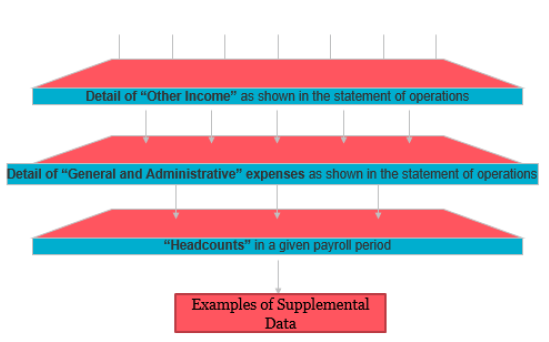
• An example of supplementary information is an expanded table containing the details for line items in the financials.

• Supplementary information system is valuable for any company, allowing them to provide important additional information—such as “roll forward” reports, debt roll forwards, fixed asset roll forwards, and equity roll forwards, which are necessary to support financial statements.

Non-Accounting Information

• An employee in charge of accounts receivable might keep a supplementary record with notes about customer demeanor, personality, and ability to pay future invoices. This extra information helps the employee perform their job by giving additional warnings about controls or customers which might need additional attention.

Methods to Collect Supplemental Data

There can be two methods to collect supplemental data. Supplemental data can be collected in single source system where master data is stored or in separate systems.


Collection of Data in Single Source System

Supplemental data can be stored in single source system where master data is stored

For example: In any ERP system (e.g., PeopleSoft or JD Edwards, etc.) or any of Oracle EPM Cloud Close suites.

Oracle EPM Cloud Close suite (Financial Consolidation and Close Cloud services (FCCS), Account reconciliation Cloud services (ARCS) and Tax Reporting Cloud services (TRCS) supports Consolidated data as well Supplemental data into a single system.

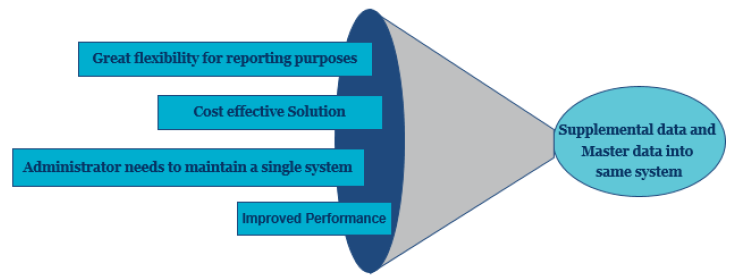
Benefits of Collecting Supplemental Data in Single Source System like SDM of FCCS

● It provides greater flexibility for reporting purposes

● Cost effective solution

● Administrator needs to maintain a single system

● Improved performance


Collection of Data in Separate Systems

Supplemental data can be stored in a separate system than the master source system. It can be MS Excel/File system/Database tables, etc.

Impacts of Maintaining Data in Multiple Systems

1. Collecting data in multiple systems can impact reporting capabilities.
2. System administrator will have to maintain multiple different systems.
3. When the master source system does not support inbuilt supplemental data collection and system admin still have to store supplemental data into master system, the size of master system will increase which might impact performance.


Supplemental Data Manager: An Untapped Gem of Close Consolidation

Oracle EPM cloud close consolidation suite (FCCS, ARCS and TRCS) have an inbuilt supplemental data collection tool named “Supplemental Data Manager” (SDM).

EPM cloud close consolidation suite supports consolidation, account reconciliation, and tax reporting for controllership users. Not only this, using SDM functionality of Oracle Cloud, supplemental data can be stored in EPM.
Summary/aggregated data will be available in FCCS/ARCS/TRCS whereas additional/detailed supporting information will be stored in SDM.

Supplemental Data in Financial Consolidation and Close Cloud Services (FCCS)

Oracle Financial Consolidation and Close Cloud Service (FCCS) is a suite of:


Oracle Supplemental Data Manager (SDM) is a platform that can be used to centralize the collection of financial, textual, and other unstructured data. It helps organizations to streamline the supplemental data collection process and introduces visibility as well as efficiency into the process.

SDM Provides a Robust Ad Hoc Data Collection Process That Supports:

• Defining the data definition process and associated data forms for data collection
• Provides a complete security mechanism on data
• Supports the ability to create calculation formula and validation criteria
• Control and monitor the data collection workflow

Examples of Use of SDM


How to Enable Supplemental Data Manager in FCCS

To collect supplemental data within FCCS, supplemental data collection module needs to be enabled while creating FCCS application. As shown in below screenshot of “Enable Features” while creating FCCS application, FCCS provides below options –


1. Enable both “Consolidation” and “Supplemental Data Collection” option to store both consolidated and supplemental data
2. Enable “Consolidation” option to store consolidated data only
3. Enable “Supplemental Data Collection” option to store supplemental data only
Note – If an FCCS application has been created without enabling the SDM, it can be enabled later as well.

Collection of Supplemental Data in FCCS – Investment Details

An organization makes a couple of investments. For each investment, the company needs to store additional information as well. Detailed information of investments will be collected as supplemental data whereas Invested amount will be part of the company's Financial Statements.

FCCS the Game Changer
Based on requirements – FCCS will keep only the aggregated invested amount for financial statements, whereas other detailed information will be kept in S    DM.
Detailed Investment information to be collected can be divided into 4 different sections –
1. General Information
2. Investment Information
3. Investment Details
4. Investment Value


Steps to Set Up SDM in FCCS
Below are the eight steps to set up Supplemental Data Manager in FCCS.


Step 1 - Study Existing Process

Study the existing user input templates to:
● Identify all attributes/parameters for which data needs to be collected?
● Is there any need to create an additional dimension or attribute?
● Any validation logic required?
● Any calculation required?
● How SDM Input Form will be organized?
● User/Team details who will input data into SDM Forms?
● How to set up the Workflow process?
● Security setup details required?

Step 2 - Create the Additional Dimension/Attributes to Record Information

In addition to FCCS inbuilt dimensions, additional dimensions can be created to store supplemental information. Each Dimension can have further members under it. Metadata will be loaded for these members.
For example, In following screenshot “Account” is a FCCS seeded dimension, whereas “Moodys Ratings” is a custom dimension to store additional information.


Below two custom dimensions will be created to store investment details.
1. ‘Moodys Rating’
2. ‘SP Rating’
Following are the members and properties for each dimension.


Step 3 - Define the Data Set

• A data set consists of all attributes, required to record data.
• Under Data Set, new Attributes can be created.
• It consists of Attributes from dimensions (FCCS seeded dimension or custom dimension) and Attributes created in the data set.


• Once the Data Set has been defined, it will be used to create SDM Forms.

As shown in below screenshot – add all Attributes under the “Investment Details”.


Step 4 - Create Form Template

Form Template is created based on ‘Data Set’ and is a reusable component. To Create a Form Template:
• Define the layout of user input forms.
• Define mapping between FCCS and SDM and using that data will flow from SDM to FCCS.
• Define instructions to be followed by the user while entering data.
• Define the Workflow process.
• Define the security setup.
• Define the Users/Team who will be responsible to input data in SDM form for specific Entity.

Create New Section under Form Template

As per requirement, there will be four sections to collect Investment details:
Under each section, there are three tabs:
1. Columns
2. Group By
3. Mapping

Columns Tab
Choose the attributes which need to be added under the ‘Investment detail’ section from “Data Set” “Investment Details”.

• Select the checkbox “Included” for all items required in “Investment Value” section out of the entire Attributes of Data Set “Investment Details”.
• Select the checkbox “View only” if any column needs to be marked as view only.
• For all columns where ‘Data Type’ is Number, you can define the ‘Total Validation POV’.
• For example - If aggregated investment amount is available in FCCS and using SDM, detailed information is getting submitted, SDM Data can be validated against the data stored in FCCS.
• A mapping needs to be defined between FCCS and SDM members for ‘Total Validation POV’.


Group By Tab

● In “Group By” page – it will show only those columns which were selected as “Included” in “Column tab”.
● Select the “Included” check box for which data needs to be sent to FCCS.
● Select the “Group By” check box against which data needs to be aggregated in SDM and sent to FCCS.
● Select the “Included” check box for which data needs to be sent to FCCS.
● Select the “Group By” check box against which data needs to be aggregated in SDM and sent to FCCS.
For example – In screenshot – SDM will aggregate data against “Investment ID” for “Current Value”, “Book value”, “Unrealized Loss”, “Market Value” and “Fair Value” columns and send from SDM to FCCS.    


Mapping Tab
In Mapping Tab, mapping between SDM and FCCS is defined.

To define mapping, click on POV - it will open a new window to select the specific member from each FCCS dimension.
    

As shown in the above screenshot - we can see the specific member from FCCS dimension.
As a result of this mapping - Value of “Book Value” entered by user will map to, “Investment Details” account of FCCS.

Click OK.

Click on “Save Button” to complete all tasks related to Section Tab and return to “Form Template”.
Once Section has been defined, the next import task under ‘Form Template’ is to define the workflow process for SDM forms. Go to the ‘Workflow’ tab.

Workflow Tab

Define the workflow process of SDM input form. Below are different available options.

    
● There can be multiple approval levels.
● Once, SDM form will be in Posted status – Data will be moved from SDM to FCCS.
● Based on the selected workflow option, preparer, approver, and integrator need to be defined.
● Post deployment of template, preparer, approver, and integrator who has been defined in Workflow, will be able to perform specific tasks in SDM Input form for Entities that has been defined in Workflow.

Step 5 - Open the Period for Data Collection
To start supplemental data collection process:
• Make sure the period is open for the month in which data is to be loaded.

Step 6 - Deployment the Form Template
Once the form template has been created, the next step is to deploy the template.

Step 7 - Data Submission to Input for Using workflow
Once SDM forms have been deployed, it will undergo the workflow process.
It will have three stages below:
1. Preparer
2. Approver
3. Integrator

Preparer Related Task

Once the SDM form has been assigned to the preparer, the preparer needs to enter the data and submit data to approver for approval.
For our example, there are four different tabs under “Investment details” where the preparer needs to enter data.


Enter the details and click the ‘Save’ button. Similar to this, the preparer need to enter details in all four forms.
Once all data has been entered into four different forms, the preparer needs to “Submit” control from “Preparer” to “Approver” stage.

Approver Related Task
• Once the preparer will submit the data, control will move to “Approver”.
• Approver has the option to “Approve” or “Reject” this data.
• On Rejection – control will go back to the preparer.
• On Approval – control will move to next level (i.e., Integrator).
• Once approver clicks the ‘Approve’ button, control will move to the integrator.

Integrator Related Task
• Once control moves to the integrator, the integrator can post or reject it.
• Once it has been posted, data will be moved from SDM to FCCS.

Viewing Data in FCCS
• As “Book Value” was mapped with the “Investment details” member in FCCS.
At the below member combination, data can be seen in FCCS.
• SDM data will be loaded on the “Supplemental Data” member from the “Data Source” dimension in FCCS.


Drill through from FCCS to SDM

• FCCS will hold summary data and detail data will be available in SDM.
• To see detailed data from FCCS, the drill-through option can be used.
• It is supported via Smart View and FCCS Web Forms.
• In Web Form - right click on the data cell for account “Investment Details”-> ‘C_101” and select Drill Through.
• On the next window, all four input forms will appear.


The screen of SDM below will appear where we can see all four input forms.


Step 8 - Close the Data Collection Period
Once Supplemental data has been posted, close the data collection period.
Powerful SDM Features Provided by FCCS
With the implementation of FCCS, any organization can have a centralized system to store financial data as well as the supplemental data.

Supplemental Data Manager Security
SDM provides a robust security model. While defining the SDM “Form template”, Admin needs to set up the SDM workflow.


Admin needs to define who will be the preparer, approver, and integrator for each entity for which SDM data need to be loaded.

Post deployment of Template – Only preparer, approver, and integrator who has been defined in Workflow will be able to perform specific tasks in SDM Input form for that particular Entity.

SDM allows users to define Teams instead of individual preparer, approver, and integrator. Teams specifically for supplemental data, for example, for working on supplemental data forms
can be created. You can then determine which users or teams can claim a form, and from Access, you can assign teams for workflow stages.

Based on assigned access – multiple users can enter data to their respective assigned SDM Input form at same time.

For SDM Input form – only specific users who have given access “Form Template” under “Access Tab” can view the data.

Based on dimension level security defined in FCCS, users will be able to see data for specific members in FCCS.

Data Flow from Supplemental Data Manager to FCCS
Once data has been approved and posted by the integrator, data will be moved from SDM to FCCS application.
At below combinations, data will be available in FCCS:
● “Supplemental Data” member from “Data Source” dimension
● Year, period, scenario, and entity will be picked from SDM input form.
● For other dimensions, data will be available on member-defined in the mapping session.

Data will be available on the same combination which has been defined under the “Mapping” section. For example, as per the screenshot below, data will be available on “Investment Details” Account.


Supplemental Data Management Dashboard

FCCS provides inbuilt Dashboard to monitor the progress on SDM input forms. You can monitor the business process and supplemental data information using below types of dashboards.
1. Task
2. Compliance
3. Financial dashboards


Benefit of Supplemental Data Management

A Single Interface
Both consolidated and supplemental data can be stored from a single interface of Oracle EPM Financial Consolidation and Close services (FCCS).

Flexible Reporting Capabilities
As both consolidated data and supplemental data is available at the same interface, it provides great flexibility to report both types of data.
Summary/aggregated data will be available in FCCS whereas additional/detailed supporting information will be stored in SDM.
FCCS allows drill through from FCCS to SDM to see detail-level information.

Cost Effective Solution
Storing both consolidated data and supplemental data into a single interface is a cost effective solution for any organization. Administrator needs to maintain a single system. FCCS supports SaaS architecture.

Improved Performance
Instead of maintaining information in multiple sources for consolidated data and supplemental data, having a single source reduced the end to end consolidation cycle time and improved performance.
Security
FCCS/SDM provides a robust security model. For the SDM input form, only specific users who have been assigned any task (preparer, approver, and integrator) or given access “Form Template” under “Access Tab” can view the data.
Based on dimension level security defined in FCCS, users will be able to see data for specific members in FCCS.

Easy User Interface
FCCS provides great flexibility to load supplementary data into SDM input form. Users can use Smart View (Excel), load data file (.CSV format), and use a web interface.
FCCS provides different types of Dashboards to see the status of SDM input forms.

SDM Workflow
Using workflow, it can easily track the status of any task. The administrator or power user sends email alerts to assigned users for their related data forms.


-Last updated by Mohit Jain on Aug 08, 2023

Introducing Business Script Language (BSL) in HFM 11.2.22: A Native Alternative to VBScript

In one of prior blog , we talked about that Microsoft’s plan to deprecate the VB scripting language and how VBScript will be retired and eli...