Showing posts with label Data Exchange. Show all posts

Sunday, 15 June 2025

Importing the pre-mapped transactions for Reconciliation Compliance Applications in Data Exchange - New Options

From 25.06 release, using Data Exchange to import pre-mapped transactions, the following new options are available:
  • Date format: Specifies the data format for transactions
  • Use comma as decimal separator: Set Yes or No to indicate if a comma must be used as a decimal separator

When registering an application, or creating a data integration, we can set the above options by using Data Exchange under the Application card.


Where for Data format, available options are -
    • MM/dd/yyyy
    • MM-dd-yyyy
    • MMM d, yyyy
    • d-M-yyyy
    • dd-MMM-yy
    • dd/MM/yyyy
    By default, the date format is blank, which enables the system to use means all date format to parse date values.

    And
    Use commas as decimal separator, select Yes to use a comma as the decimal separator.

    Select No to use the user locale for number parsing. 

    By default, this option is set to No (the decimal separator is based on the user locale and not a comma.)
In below section, we will talk how to register the reconciliation compliance Transactions application. 

Registering a Reconciliation Compliance Transactions Application

To register a Reconciliation Compliance Transaction application by selecting the "Data Export" category and "Reconciliation Compliance Transactions" as the application type, and then you select the application name.

To add a Reconciliation Compliance Transactions target application:

  1. From the Data Integration home page, and then Actions, select Applications.

  2. On the Applications page, click Image shows the Add icon. (Add icon).

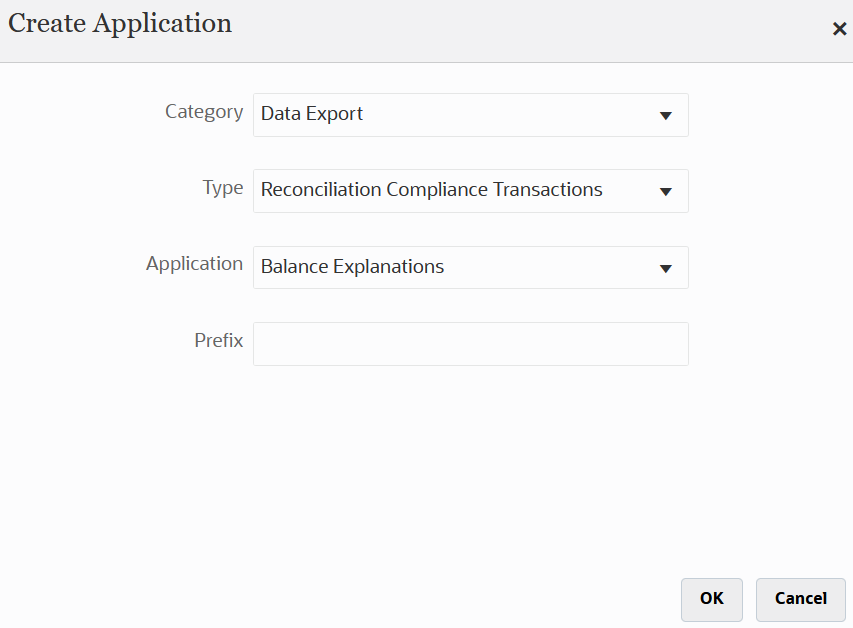
  3. On the Create Application page, and then Category, select Data Export.

  4. From Type, select Reconciliation Compliance Transactions.

  5. From Application, select the Reconciliation Compliance Transactions application transaction type.

    Application Name is a drop-down list with the following transaction types:

    • Balance Explanations
    • Source System Adjustments
    • Subsystem Adjustments
    • Variance Explanations

    Image shows the Create Application page for a Reconciliation Compliance Transactions application.

  6. In Prefix, optionally specify a prefix to make the application name unique.

    The prefix is concatenated with the application name to form a unique application name. For example, if you want to name an application with the same name as an existing one, you can assign your initials as the prefix.

  7. Click OK.

  8. From the Applications page, select the Reconciliation Compliance Transactions Application that you just registered above, then click Image shows Select icon. to the right of the application, and then select Application Details.

  9. Select the Options tab.

    Your selections on the Options tab apply to the target application.

    Image shows the Options tab of Application Details.

  10. Click Save.

Business Benefit: This feature provides additional flexibility and improves usability when loading pre-mapped transactions.

Friday, 30 May 2025

New Copy Integration Feature in Data Integration

A new Copy Integration feature enables administrator to create an integration identical to another integration but with a different name. Administrator can reuse the existing source location or create a new location and reuse the source import format or create a new import format. Administrator can also copy between a local environment or to a remote environment. The Copy integration features is only available for administrators.

The Copy Integration option is available from the home page by by clicking ... next to the integration to copy and then selecting Copy from the Task Menu: 

Image Shows The Data Integration Home Page.

Image Shows The Data Integration Home Page.

You are then prompted to select copy integration options including:

  • new integration name
  • create location option
  • create import format option
  • connection

Image Shows The Copy Page.

Image Shows The Copy Page.

By default, the name of the copied integration is a concatenation of the source integration name and the suffix: “_1." Optionally, you can assign a unique name to the copied integration.

When Administrator select to create a new location or import format, the system concatenates the source location name or import format name and adds the suffix “_1.  If Administrator do not create a new import format or location, the existing location and import format names are used in the copied integration definition.

If a new import format is checked, then a new location is also enabled automatically.

By default, the copied integration uses the local connection, but Administrator can select another local or remote connection.

Applies to:  Account Reconciliation, Enterprise Profitability and Cost Management, Financial Consolidation and Close, FreeForm, Planning, Profitability and Cost Management, Tax Reporting

Business Benefit: Use the copy integration feature to create a new copy of an integration definition with identical connections and mappings.  You might this feature when you want to copy an integration definition in a test environment or you want to copy a source integration as a model for other integrations.

Created by Mohit Jain and Megha Gupta


Wednesday, 8 May 2024

Announcement: Data Management Feature Migration to Data Integration

Data Integration is the next generation of the Data Management user interface, enabling users to easily build and manage Cloud EPM integrations.

 As feature parity between Data Integration and Data Management becomes complete, Data Management features will be turned off, and users will use the new Data Integration user interface instead. This transition is gradual.

The user interface pages listed in the table below are no longer available in Data Management but are available in Data Integration. 


Please note -

  • Data Management is not going away – only few features will move to Data Exchange.
  • Profitability and Cost Management customers are not affected by the migration and do not see a change in their Data Management user interface. 
  • REST APIs are not impacted by this change.
  • Integration definitions built with Data Management are also visible in Data Integration, which enables an easy transition. (Data Integration is a new user interface on the Data Management data model and does not require migration of content from Data Management to Data Integration).
  • Anu additional new integration features will only be included in Data Integration, and will not be back-ported to Data Management. 
  • Critical bug fixes and security fixes will still be made to Data Management until all features are fully migrated. In addition, all features from Data Management will be migrated to Data Integration with the exception of the following:
  • The batch feature will be replaced by the new Pipeline feature. 
  • The Report Definition feature will not be migrated, only the Report Execution feature.
  • The ability to create new Custom Applications in Data Management will no longer available, and we should use the “Data Export to File” application type instead.

These changes apply to ARCS, FCCS, TRCS, Enterprise Profitability and Cost Management,  FreeForm, Planning, and Planning Modules

Thank you!

Tuesday, 7 May 2024

Loading Oracle ERP Cloud Exchange Rate (FX) to Oracle EPM Cloud

From May-2024 update, In Data Integration, customers can now extract exchanges rates (FX rates) from the Oracle ERP Cloud using an ERP Cloud FX Rate adapter. The adapter is used as a data source in Data Integration. The adapter enables customers to select daily conversion rates for specific combinations of foreign currency, dates, and conversion rate types. This feature is only available for the standard load method.

The ERP FX Rate adapter supports period mapping requirements for the FX rate. The source data from the Oracle ERP Cloud is provided by the conversion date. Date-based FX Rate data is converted to EPM periods so it can be easily mapped and loaded to EPM Cloud applications. 

This update is applicable to FCCS, FreeForm, Planning, Tax Reporting

EPM Cloud customers who wish to use the new adapter are required to be on Oracle Fusion Cloud Financials Update24B in order to extract FX rates from the Oracle ERP Cloud.

Business Benefit: The ERP Cloud FX Rate Adapter is a purpose-built adapter, which enables customers to pull FX rates from the Oracle ERP Cloud without having to build custom BI Publisher reports. Using this feature, organizations have ready access to exchange rate values when determining revenue allocation for currency-denominated revenue streams.

Thank you!

Sunday, 5 May 2024

Removal of Support for Custom Application in Data Management

Custom Application in Data Management

Custom application was used to extract data from the EPM Cloud, and then the data was pushed into a flat file instead of being loaded to an EPM Cloud application. The custom application was superseded by the Data Export to File feature in an earlier update. The Data Export to File feature has enhanced functions and capabilities.

Removal of Support for Custom Application in Data Management

Since the September (23.09) update, custom target applications can no longer be added in Data Management. (Existing integrations that use a custom target application will not be impacted and will still run without any changes.) 

If you still have a custom target application, it is recommended that you use the Upgrade Custom Applications option to migrate your existing custom target application to a data export to file application. Follow the below steps to upgrade 

  • On the Workflow tab, under Other -> System Maintenance Tasks, select Upgrade Custom Applications.


  • Click Execute.
  • From Execute Script, and then in Value, specify the name of the custom target application to migrate from the LOV.
  • To browse custom target applications, click Image shows Search button, and from the Search Parameter Value screen, select the custom target application and click OKTo migrate all custom applications, in Value, enter All Custom Applications. 
  • You can monitor the progress, go to the Workflow tab, under Monitor -> Process Details.


  • You can see the Application Type before and after migration
         Before migration
                 

After migration


The migration converts existing file formats from the custom target application to the file formats used in the data export to file option and retains all the existing setup. When the custom target application has been converted, you can run same integration as before. Data export file applications are available both in Data Management and Data Integration.

Thank you!


Saturday, 13 April 2024

Is it possible to integrate non oracle systems to ARCS and get reconciliation done frequently without any manual intervention?

Problem Statement

Is it possible to integrate non oracle systems to ARCS and get reconciliation done frequently without any manual intervention?

ARCS Functionality

Oracle ARCS is a robust and secure solution for managing and automating account reconciliation period end processes, and performing large scale transaction matching, improving efficiency and accuracy of financial processes and statements. With ARCS key capabilities, you can perform tasks such as automate high volume transaction matching and directly integrate with period end reconciliations.

It is a purpose-built solution on the cloud for managing the global reconciliation process.

You can load transactions for past and current period and can perform complex reconciliations across unlimited data sources using unlimited attributes.

Solutions

To load data to ARCS you can use file-based integration. It does not matter what ERP system you are using be it Oracle or Non -Oracle or your non-financial data systems. You can extract data in file in required format and can automate the whole data upload process. There are various ways to load data into Oracle Account Reconciliation.

Methods of Loading Data into Account Reconciliation

There are various ways to load data:

  1. Use the Account Reconciliation user interface to load pre-mapped data.
  2. Importing Transactions directly from Excel using the Smart View Extension for Reconciliation Compliance.
  3. Use the EPM Automate Utility 
  4. Use the Data Management or Data Integration
  5. Use the EPM Integration Agent 
1. Use the Account Reconciliation user interface to load pre-mapped data
 Transactions and balances can be imported using flat files in ARCS. it allows to - 
    • Import pre-mapped balances for both Reconciliation Compliance and Transaction Matching
    • Import pre-mapped transactions for Reconciliation Compliance
    • Import pre-mapped transactions for Transaction Matching
2. Importing Transactions directly from Excel using the Smart View Extension for Reconciliation Compliance
You can use Excel to load transactions into Reconciliation Compliance by using the Smart View Account Reconciliation extension. The direct integration requires the base installation of Smart View plus the Smart View extension for Reconciliation Compliance.

3. Use the EPM Automate Utility 
EPM Automate enables users to remotely perform tasks within ARCS. EPM Automate provides the commands to import pre-mapped balances, import pre-mapped transactions, import balances using Data Management or Data integration, import mapping, import rates and import attributes values.

4. Use the Data Management or Data Integration
ARCS provides the flexibility to import balances and transactions by using Data Management or Data Integration.
    5. Use the EPM Integration Agent 
    Data and Metadata can be extracted from on-premises data source and then load the data directly to the ARCS using the EPM Integration Agent. The EPM Integration Agent executes a query against an on-premises relational database and then loads the data or metadata to the EPM Cloud. The EPM Integration Agent is defined as a data source for an integration. The EPM Integration Agent may also be extended by way of scripting to access other data sources including third-party REST APIs, non-relational sources, or any system or systems that can be accessed using a Jython, Groovy, or Java program.

    Thank you!

    Sunday, 28 May 2023

    New major update on Task Manager - Data Exchange Integration- Jun-2023 update

    Data Exchange Integration Type and Task Type in Task Manager

    Task Manager is enhanced with a new end user integration and task type called Data Exchange that allows to streamline the data exchange integration tasks with the monthly close process. This integration is available for:

    • Local and remote Financial Consolidation and Close, Tax Reporting, and Planning connections
    • Remote Enterprise Profitability and Cost Management

    Applies to: Enterprise Profitability and Cost Management, Financial Consolidation and Close, Planning, Planning Modules, Tax Reporting

    Benefit: 

    • Allows to run integrations defined in Data Exchange from Task Manager.
    • This allows the integration of data loads defined in Data Exchange easily into the monthly processing schedule.

    Ability to Create and Manage External Users

    Service Administrators can now use the Manage Users tab under Access Control to create, edit, and delete external users (users who are not p...