Showing posts with label new option. Show all posts

Sunday, 15 June 2025

Importing the pre-mapped transactions for Reconciliation Compliance Applications in Data Exchange - New Options

From 25.06 release, using Data Exchange to import pre-mapped transactions, the following new options are available:
  • Date format: Specifies the data format for transactions
  • Use comma as decimal separator: Set Yes or No to indicate if a comma must be used as a decimal separator

When registering an application, or creating a data integration, we can set the above options by using Data Exchange under the Application card.


Where for Data format, available options are -
    • MM/dd/yyyy
    • MM-dd-yyyy
    • MMM d, yyyy
    • d-M-yyyy
    • dd-MMM-yy
    • dd/MM/yyyy
    By default, the date format is blank, which enables the system to use means all date format to parse date values.

    And
    Use commas as decimal separator, select Yes to use a comma as the decimal separator.

    Select No to use the user locale for number parsing. 

    By default, this option is set to No (the decimal separator is based on the user locale and not a comma.)
In below section, we will talk how to register the reconciliation compliance Transactions application. 

Registering a Reconciliation Compliance Transactions Application

To register a Reconciliation Compliance Transaction application by selecting the "Data Export" category and "Reconciliation Compliance Transactions" as the application type, and then you select the application name.

To add a Reconciliation Compliance Transactions target application:

  1. From the Data Integration home page, and then Actions, select Applications.

  2. On the Applications page, click Image shows the Add icon. (Add icon).

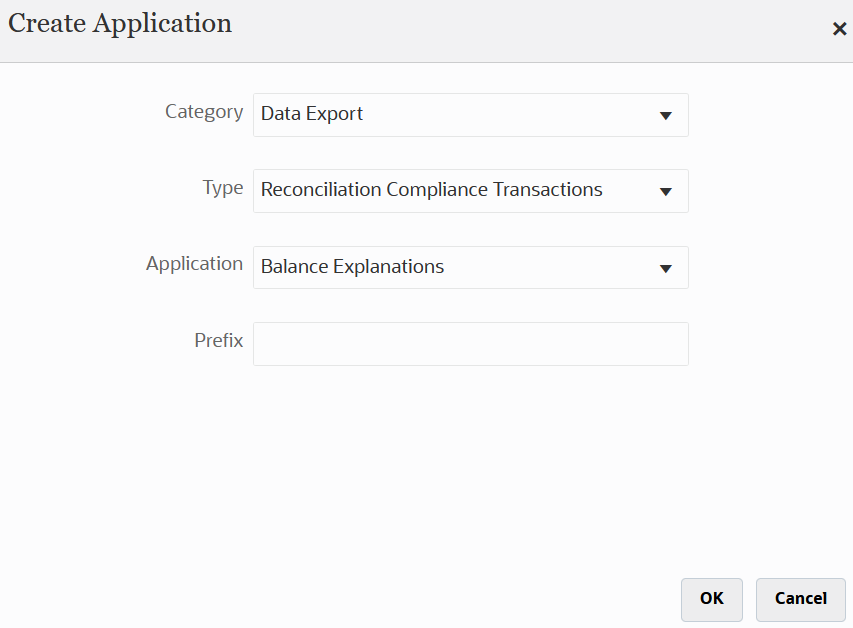
  3. On the Create Application page, and then Category, select Data Export.

  4. From Type, select Reconciliation Compliance Transactions.

  5. From Application, select the Reconciliation Compliance Transactions application transaction type.

    Application Name is a drop-down list with the following transaction types:

    • Balance Explanations
    • Source System Adjustments
    • Subsystem Adjustments
    • Variance Explanations

    Image shows the Create Application page for a Reconciliation Compliance Transactions application.

  6. In Prefix, optionally specify a prefix to make the application name unique.

    The prefix is concatenated with the application name to form a unique application name. For example, if you want to name an application with the same name as an existing one, you can assign your initials as the prefix.

  7. Click OK.

  8. From the Applications page, select the Reconciliation Compliance Transactions Application that you just registered above, then click Image shows Select icon. to the right of the application, and then select Application Details.

  9. Select the Options tab.

    Your selections on the Options tab apply to the target application.

    Image shows the Options tab of Application Details.

  10. Click Save.

Business Benefit: This feature provides additional flexibility and improves usability when loading pre-mapped transactions.

Monday, 6 May 2024

New Feature - Option to select Balance and Detail Balances while creating custom reports based on Reconciliation Compliance data

In addition to using the predefined reports, ARCS administrator can create custom reports in Reconciliation Compliance or Transaction Matching.

The Service Administrator can create custom reports by default. Other users who are assigned the Reconciliation Manage Reports role can also create custom reports. 

Creating a query is the first step in creating a custom report. ARCS allows to use inbuilt option of "Generate Query". 


The Generate Query dialog assists admin user in creating a query against the database by allowing user to select any existing attribute in the product to be queried and/or filtered against. The dialog then generates the SQL to match the attributes and filters specified, at which time you can modify and enhance it.

Before the May-2024 update, under the Reconciliation Manage Module, user can query the existing attributes from Reconciliation, Profile and Transactions. 


From May 2024 update, additional attributes are supported when creating custom reports based on Reconciliation Compliance data. In the Generate Query dialog, user can select Balance and Detail Balances when specifying the attributes to be queried or filtered.


This feature enhances the functionality of custom reports by enabling you to use additional attributes when creating custom queries.     

Thank you!


Ability to Create and Manage External Users

Service Administrators can now use the Manage Users tab under Access Control to create, edit, and delete external users (users who are not p...